
Student Manual – Ticket System
Step-by-step guide to open and track tickets
World Missions College of the Greater Washington
📋 Índice
- Como abrir um ticket (passo a passo)
- Quanto tempo pode demorar a resposta?
- Visualizar e acompanhar seus tickets
- Comunicar com o suporte e anexar arquivos
- Status dos tickets e dicas
- Contato e suporte
🎫 Como abrir um ticket – Passo a passo
1. Acessar o sistema
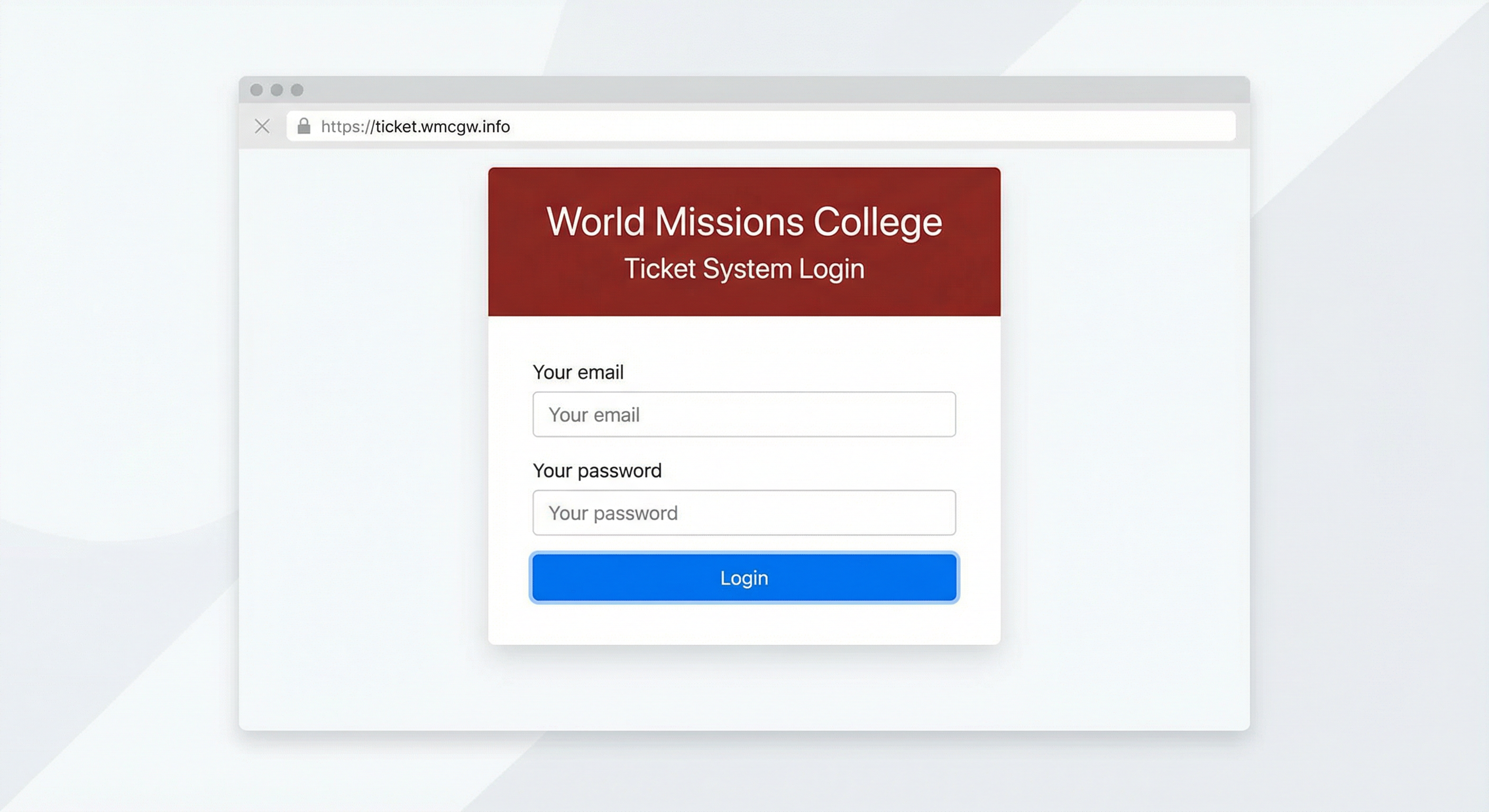
- Abra o navegador e acesse: https://ticket.wmcgw.info
- Você verá a página inicial com a opção de login.
Figura 1 – Página de login do Sistema de Tickets (WMCGW).
2. Fazer login
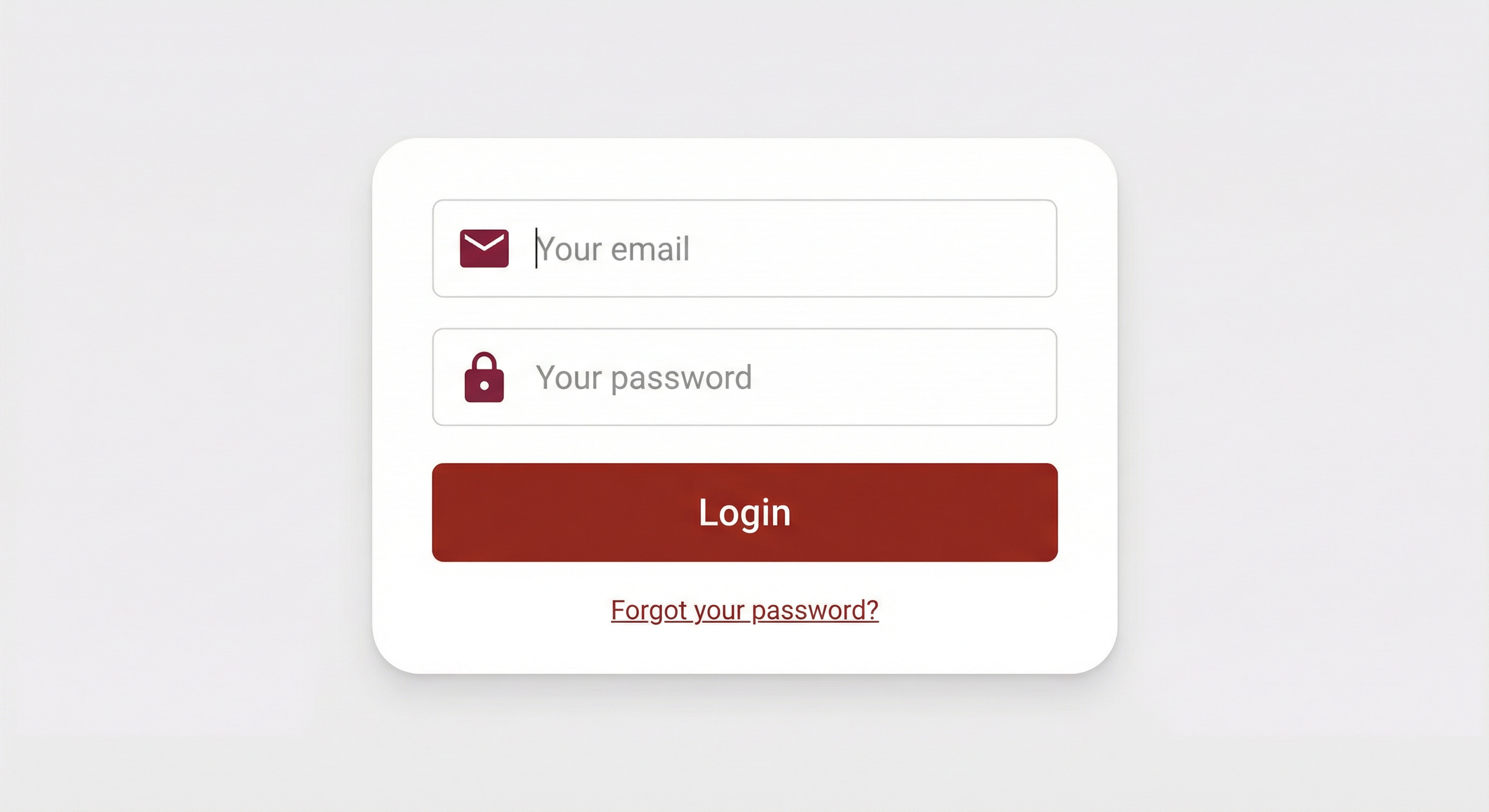
- No campo Your email, digite seu e-mail institucional.
- No campo Your password, digite sua senha. No primeiro acesso, use a senha temporária:
WMCGW@2026 - Clique no botão Login.
🔑 Primeira vez?
Se você usar a senha temporária WMCGW@2026, o sistema pode redirecioná-lo para a página Change Password para que você defina uma senha permanente. Siga as instruções na tela.
Se esqueceu a senha, use o link Forgot your password? na tela de login.
Figura 2 – Campos de e-mail e senha na tela de login.
3. Abrir o formulário de novo ticket
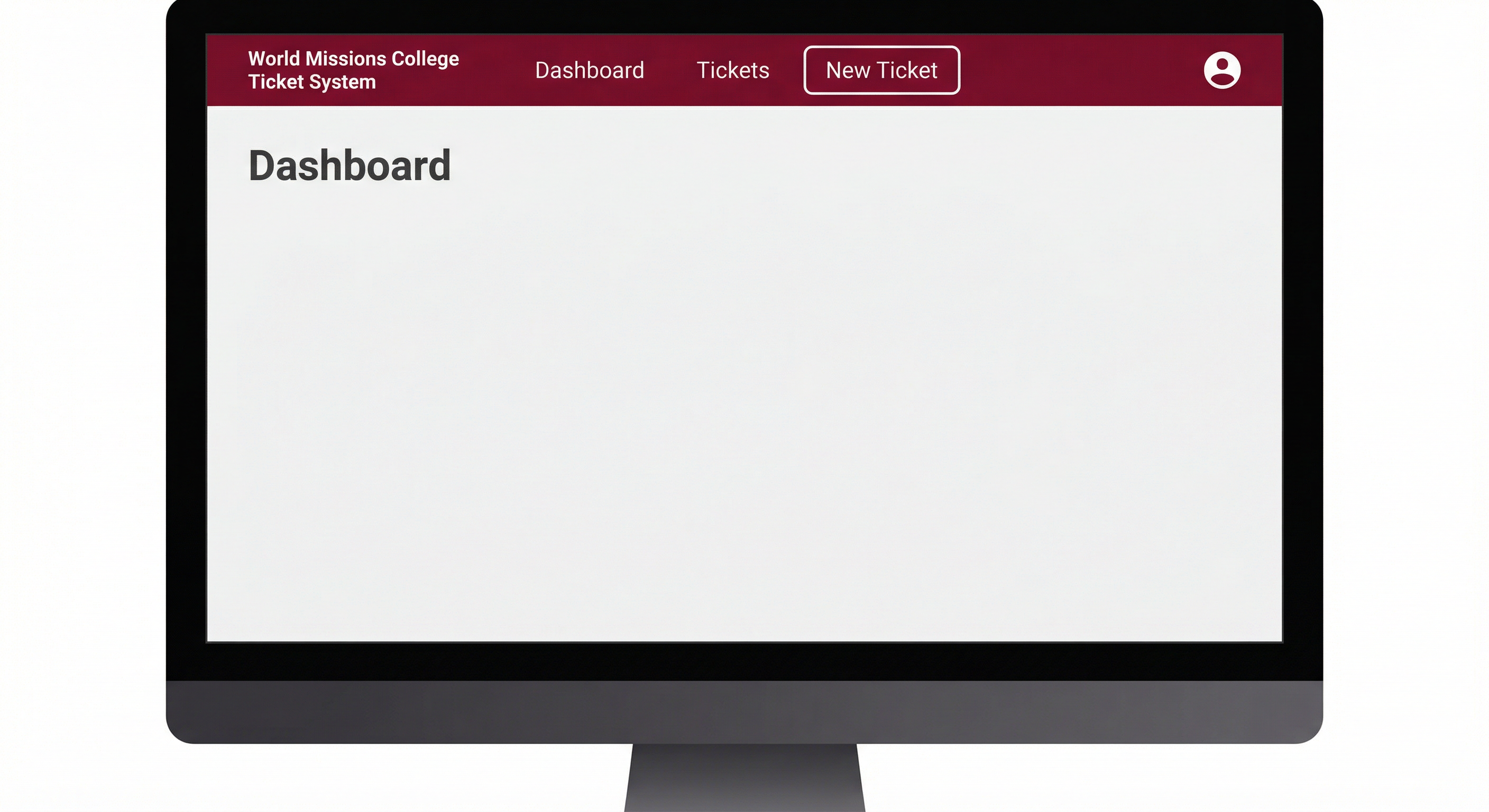
- Após o login, você será levado ao Dashboard. Seu nome e e-mail aparecem no canto superior.
- No menu principal, clique em New Ticket (ou Create Ticket).
- Será exibido o formulário para criar um novo ticket.
Figura 3 – Menu principal com destaque para “New Ticket”.
4. Preencher o formulário do ticket
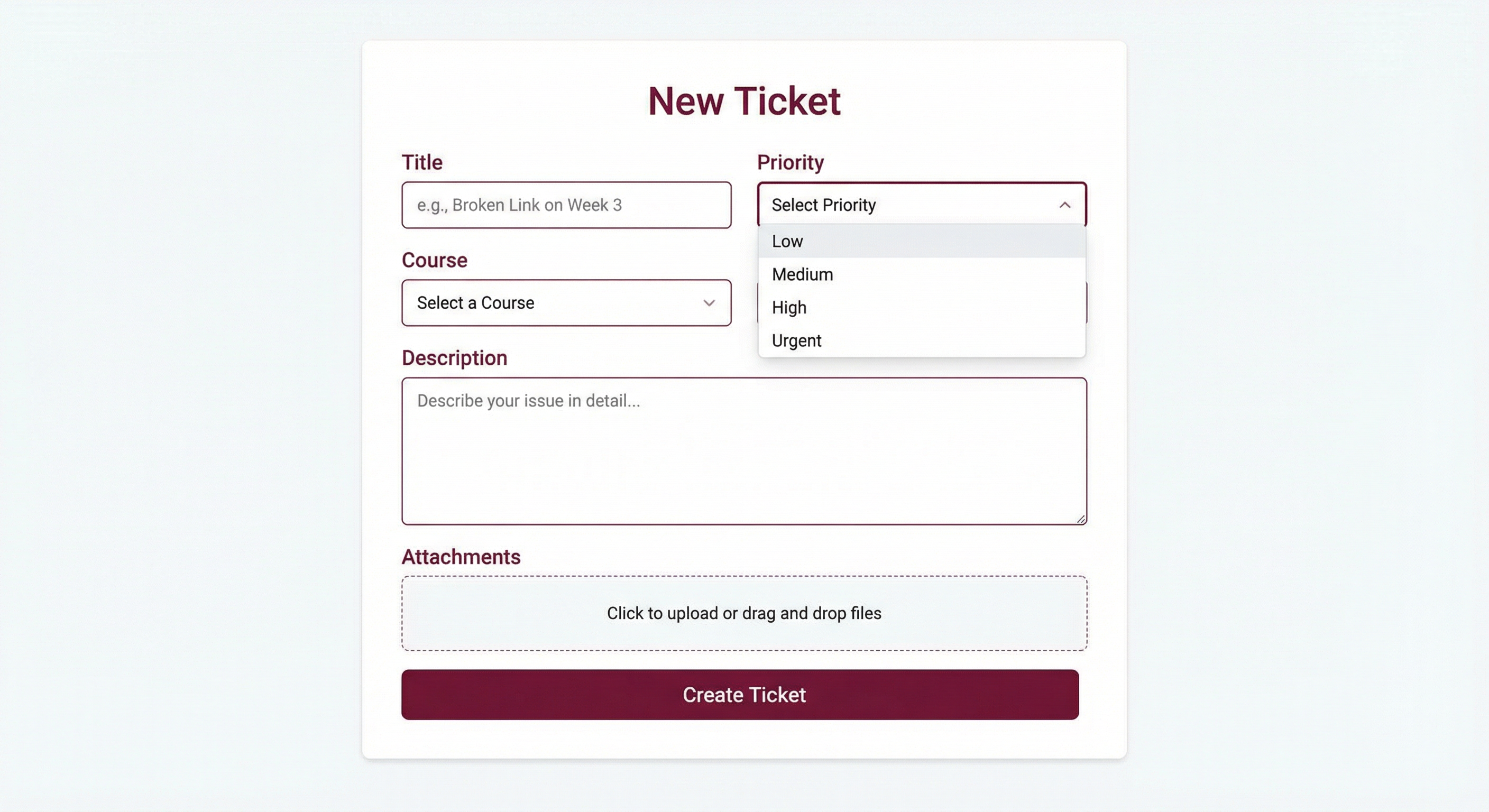
Preencha todos os campos obrigatórios (marcados com *):
- Title (obrigatório) – Título curto e claro que resume o problema ou pedido.
- Priority (obrigatório) – Escolha: Low, Medium, High ou Urgent. Use Urgent apenas em situações que impedem totalmente suas atividades.
- Course (obrigatório) – Selecione o curso/disciplina relacionado ao seu problema.
- Description (obrigatório) – Descreva o problema em detalhes.
- Attachments (opcional) – Até 5 arquivos (JPG, PNG, PDF, DOC, DOCX, TXT), no máximo 5 MB cada.
Figura 4 – Formulário de criação de ticket (Title, Priority, Course, Description, Attachments).
5. Revisar e enviar
- Revise os dados e clique em Create (ou New Ticket).
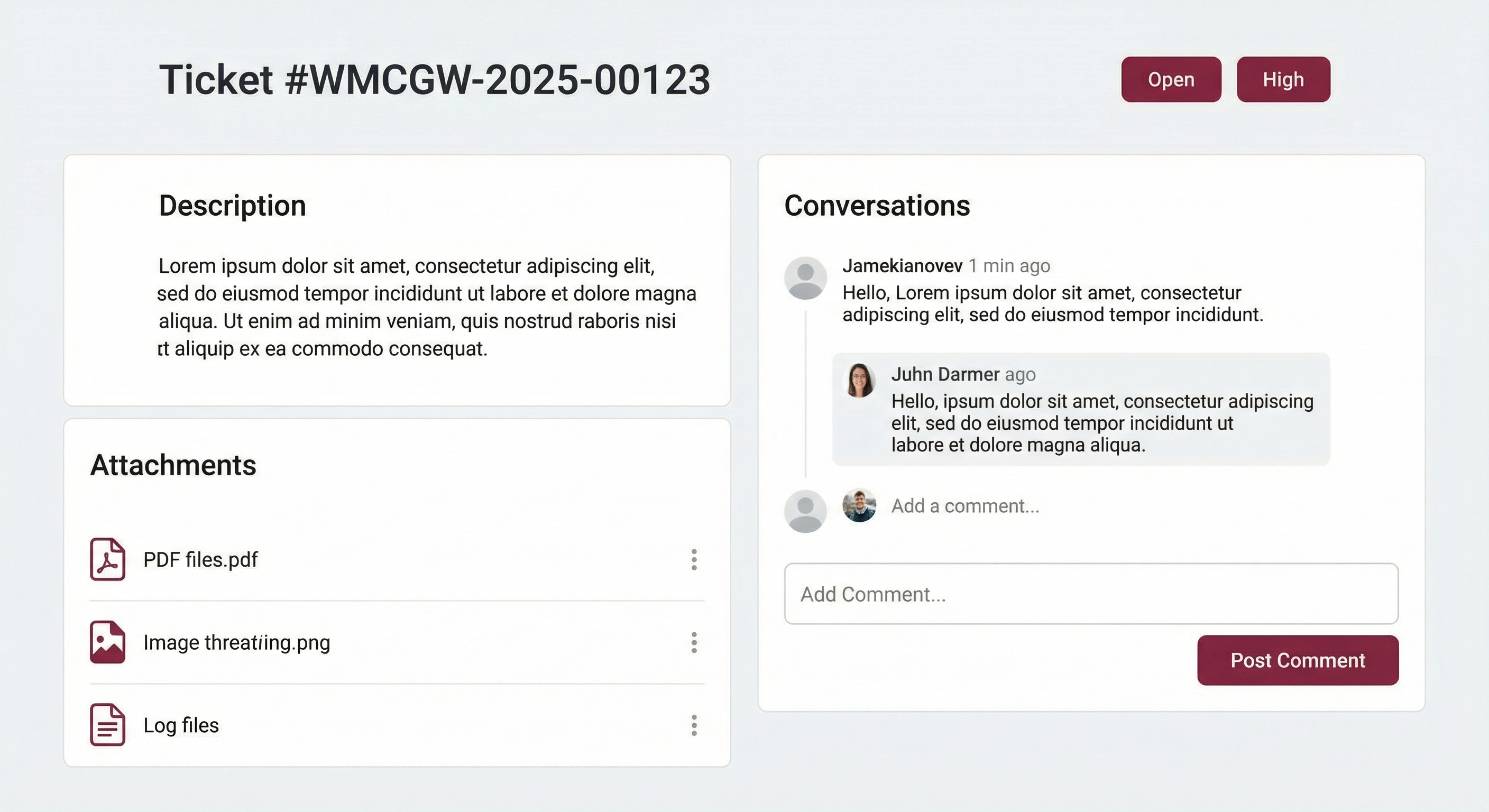
- Você será redirecionado para a página de detalhes do ticket, onde verá o número do ticket (ex.: WMCGW-2025-00123). Guarde esse número para referência.
Figura 5 – Confirmação após criar o ticket; anote o número do ticket.
⏱️ Quanto tempo pode demorar a resposta?
- Objetivo geral: A equipe busca responder em até 24 a 48 horas úteis (horário Pacific Time – Los Angeles).
- Prioridade Urgent: Tickets marcados como Urgent são priorizados.
- Notificações por e-mail: Você receberá e-mail quando houver nova resposta ou atualização. Verifique também a pasta de spam.
📌 Fechamento automático de tickets inativos
Se o ticket estiver Em progresso e o último comentário for da equipe, e você não responder por 52 horas, o sistema pode fechar o ticket automaticamente. Você receberá um e-mail. Se ainda precisar de ajuda, responda ao ticket ou adicione um novo comentário – o ticket pode ser reaberto.
📋 Visualizando e acompanhando seus tickets
Acessar a lista: No menu, clique em Tickets. Será exibida a lista dos seus tickets.
Filtrar: Status (Open, In Progress, Waiting, Closed, Cancelled), Priority, Course, Search. Use Filter para aplicar e Clear para limpar.
Ver detalhes: Na lista, clique em View no ticket desejado. Você verá o histórico, comentários, anexos e status atual.
💬 Comunicando com o suporte e anexando arquivos
Adicionar comentário: Na página do ticket, use a caixa de texto e clique em Add Comment. O comentário aparece na hora.
Anexar nos comentários: Se o formulário tiver campo de anexos, você pode enviar arquivos (mesmos tipos e limites do ticket).
Ver respostas: As respostas aparecem na seção de comentários e você recebe notificação por e-mail.
📊 Status dos tickets e dicas
- 🟢 Open (Aberto): Ticket criado, aguardando análise.
- 🟡 In Progress (Em progresso): A equipe está trabalhando na sua solicitação.
- 🟠 Waiting (Aguardando): Aguardando informação ou ação sua.
- 🔵 Closed (Fechado): Ticket resolvido e finalizado.
- 🔴 Cancelled (Cancelado): Ticket cancelado.
Dicas: Seja específico no título e na descrição; anexe capturas de tela quando úteis; informe mensagens de erro exatas; escolha a prioridade e o curso corretos.
💬 Contato e suporte
Dúvidas adicionais
📧 E-mail geral: support@wmcgw.edu
📞 Telefone: 202-430-5634
📧 Suporte académico: academiccoordination@wmcgw.edu
🌐 Sistema de tickets: https://ticket.wmcgw.info
📋 Table of Contents
- How to open a ticket (step-by-step)
- How long can a response take?
- View and track your tickets
- Communicate with support and attach files
- Ticket status and tips
- Contact and support
🎫 How to open a ticket – Step by step
1. Access the system
- Open your browser and go to: https://ticket.wmcgw.info
- You will see the home page with the login option.
Figure 1 – Ticket System login page (WMCGW).
2. Log in
- In the Your email field, enter your institutional email.
- In the Your password field, enter your password. On first access, use the temporary password:
WMCGW@2026 - Click the Login button.
🔑 First time?
If you use the temporary password WMCGW@2026, the system may redirect you to the Change Password page so you can set a permanent password. Follow the on-screen instructions.
If you forgot your password, use the Forgot your password? link on the login screen.
Figure 2 – Email and password fields on the login screen.
3. Open the new ticket form
- After logging in, you will be taken to the Dashboard. Your name and email appear in the top corner.
- In the main menu, click New Ticket (or Create Ticket).
- The form to create a new ticket will be displayed.
Figure 3 – Main menu highlighting "New Ticket".
4. Fill out the ticket form
Fill in all required fields (marked with *):
- Title (required) – A short, clear title that summarizes the problem or request.
- Priority (required) – Choose: Low, Medium, High, or Urgent. Use Urgent only for situations that completely prevent your activities.
- Course (required) – Select the course related to your problem.
- Description (required) – Describe the problem in detail.
- Attachments (optional) – Up to 5 files (JPG, PNG, PDF, DOC, DOCX, TXT), max 5 MB each.
Figure 4 – Ticket creation form (Title, Priority, Course, Description, Attachments).
5. Review and submit
- Review the data and click Create (or New Ticket).
- You will be redirected to the ticket details page, where you will see the ticket number (e.g., WMCGW-2025-00123). Keep this number for reference.
Figure 5 – Confirmation after creating the ticket; note the ticket number.
⏱️ How long can a response take?
- General goal: The support team aims to respond within 24 to 48 business hours (Pacific Time – Los Angeles).
- Urgent priority: Tickets marked as Urgent are prioritized.
- Email notifications: You will receive an email when there is a new response or update. Also check your spam folder.
📌 Automatic closure of inactive tickets
If the ticket is In Progress and the last comment is from the team, and you do not respond for 52 hours, the system may automatically close the ticket. You will receive an email. If you still need help, reply to the ticket or add a new comment – the ticket can be reopened.
📋 Viewing and tracking your tickets
Access the list: In the menu, click Tickets. The list of your tickets will be displayed.
Filter: Status (Open, In Progress, Waiting, Closed, Cancelled), Priority, Course, Search. Use Filter to apply and Clear to clear filters.
View details: In the list, click View on the desired ticket. You will see the history, comments, attachments, and current status.
💬 Communicating with support and attaching files
Add comment: On the ticket page, use the text box and click Add Comment. The comment appears immediately.
Attach to comments: If the comment form has an attachments field, you can send files (same types and limits as the ticket).
View responses: Responses appear in the comments section and you receive email notification.
📊 Ticket status and tips
- 🟢 Open: Ticket created, awaiting team analysis.
- 🟡 In Progress: The team is working on your request.
- 🟠 Waiting: Waiting for information or action from you.
- 🔵 Closed: Ticket resolved and finalized.
- 🔴 Cancelled: Ticket cancelled.
Tips: Be specific in the title and description; attach screenshots when useful; provide exact error messages; choose the correct priority and course.
💬 Contact and support
Additional questions
📧 General email: support@wmcgw.edu
📞 Phone: 202-430-5634
📧 Academic support: academiccoordination@wmcgw.edu
🌐 Ticket system: https://ticket.wmcgw.info
📋 Índice
- Cómo abrir un ticket (paso a paso)
- ¿Cuánto puede tardar la respuesta?
- Ver y seguir tus tickets
- Comunicarse con soporte y adjuntar archivos
- Estado de tickets y consejos
- Contacto y soporte
🎫 Cómo abrir un ticket – Paso a paso
1. Acceder al sistema
- Abre tu navegador y ve a: https://ticket.wmcgw.info
- Verás la página de inicio con la opción de inicio de sesión.
Figura 1 – Página de inicio de sesión del Sistema de Tickets (WMCGW).
2. Iniciar sesión
- En el campo Your email, ingresa tu correo institucional.
- En el campo Your password, ingresa tu contraseña. En el primer acceso, usa la contraseña temporal:
WMCGW@2026 - Haz clic en el botón Login.
🔑 ¿Primera vez?
Si usas la contraseña temporal WMCGW@2026, el sistema puede redirigirte a la página Change Password para que definas una contraseña permanente. Sigue las instrucciones en pantalla.
Si olvidaste tu contraseña, usa el enlace Forgot your password? en la pantalla de inicio de sesión.
Figura 2 – Campos de correo y contraseña en la pantalla de inicio de sesión.
3. Abrir el formulario de nuevo ticket
- Después de iniciar sesión, serás llevado al Dashboard. Tu nombre y correo aparecen en la esquina superior.
- En el menú principal, haz clic en New Ticket (o Create Ticket).
- Se mostrará el formulario para crear un nuevo ticket.
Figura 3 – Menú principal destacando "New Ticket".
4. Completar el formulario del ticket
Completa todos los campos obligatorios (marcados con *):
- Title (obligatorio) – Un título corto y claro que resuma el problema o solicitud.
- Priority (obligatorio) – Elige: Low, Medium, High o Urgent. Usa Urgent solo en situaciones que impiden completamente tus actividades.
- Course (obligatorio) – Selecciona el curso relacionado con tu problema.
- Description (obligatorio) – Describe el problema en detalle.
- Attachments (opcional) – Hasta 5 archivos (JPG, PNG, PDF, DOC, DOCX, TXT), máximo 5 MB cada uno.
Figura 4 – Formulario de creación de ticket (Title, Priority, Course, Description, Attachments).
5. Revisar y enviar
- Revisa los datos y haz clic en Create (o New Ticket).
- Serás redirigido a la página de detalles del ticket, donde verás el número del ticket (ej.: WMCGW-2025-00123). Guarda este número como referencia.
Figura 5 – Confirmación después de crear el ticket; anota el número del ticket.
⏱️ ¿Cuánto puede tardar la respuesta?
- Objetivo general: El equipo busca responder en hasta 24 a 48 horas hábiles (hora del Pacífico – Los Ángeles).
- Prioridad Urgente: Los tickets marcados como Urgent se priorizan.
- Notificaciones por correo: Recibirás correo cuando haya nueva respuesta o actualización. También verifica la carpeta de spam.
📌 Cierre automático de tickets inactivos
Si el ticket está En progreso y el último comentario es del equipo, y no respondes por 52 horas, el sistema puede cerrar el ticket automáticamente. Recibirás un correo. Si aún necesitas ayuda, responde al ticket o agrega un nuevo comentario – el ticket puede reabrirse.
📋 Ver y seguir tus tickets
Acceder a la lista: En el menú, haz clic en Tickets. Se mostrará la lista de tus tickets.
Filtrar: Status, Priority, Course, Search. Usa Filter para aplicar y Clear para limpiar.
Ver detalles: En la lista, haz clic en View en el ticket deseado. Verás el historial, comentarios, adjuntos y estado actual.
💬 Comunicarse con soporte y adjuntar archivos
Agregar comentario: En la página del ticket, usa el cuadro de texto y haz clic en Add Comment. El comentario aparece de inmediato.
Adjuntar en comentarios: Si el formulario tiene campo de adjuntos, puedes enviar archivos (mismos tipos y límites que el ticket).
Ver respuestas: Las respuestas aparecen en la sección de comentarios y recibes notificación por correo.
📊 Estado de tickets y consejos
- 🟢 Open (Abierto): Ticket creado, esperando análisis del equipo.
- 🟡 In Progress (En progreso): El equipo está trabajando en tu solicitud.
- 🟠 Waiting (Esperando): Esperando información o acción tuya.
- 🔵 Closed (Cerrado): Ticket resuelto y finalizado.
- 🔴 Cancelled (Cancelado): Ticket cancelado.
Consejos: Sé específico en el título y la descripción; adjunta capturas cuando sean útiles; proporciona mensajes de error exactos; elige la prioridad y el curso correctos.
💬 Contacto y soporte
Preguntas adicionales
📧 Correo general: support@wmcgw.edu
📞 Teléfono: 202-430-5634
📧 Soporte académico: academiccoordination@wmcgw.edu
🌐 Sistema de tickets: https://ticket.wmcgw.info
World Missions College of the Greater Washington – Student Manual – Ticket System
Updated February 2026.